SVG vs PNG: which format should you download, and when?
SVG or PNG? What each format really is, which one to pick for a logo, print, the web, Word or social media, and which PNG size you need.
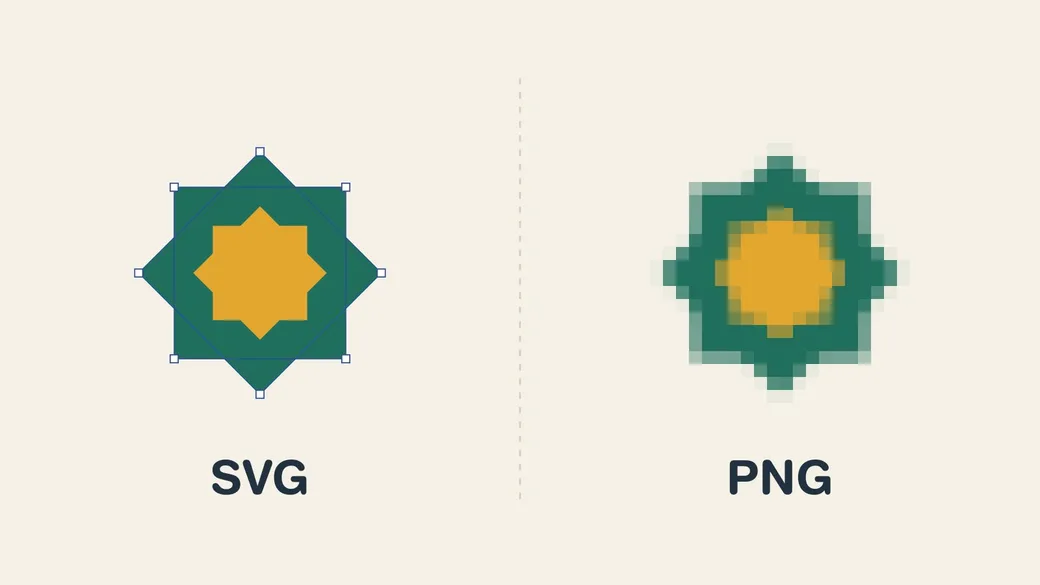
Every vector on Vector.ma can be downloaded as SVG or as PNG. Both show the same image, so the choice looks unimportant, until your logo comes out blurry on a banner or the print shop asks for “the vector file”.
The short answer: SVG when you will edit, resize or print the design, PNG when you just need to drop an image somewhere. The rest of this article explains why, and how to pick the right PNG size.
Two ways to describe an image
PNG is a grid of pixels. The file stores the color of every small square: a 512 × 512 PNG is 262,144 colored squares. Enlarge it beyond its size and the software has to invent the missing pixels, so the edges become soft, then blocky. That is what you see on the right of the cover image.
SVG is a set of instructions. It does not store pixels but shapes: “a square from here to there, filled in green”, “a curve passing through these points”. The screen or the printer draws those shapes at whatever size is needed, so an SVG stays perfectly sharp at 16 px and on a 4-meter billboard. That is the left of the cover: the small squares are the anchor points that define the shapes.
An SVG is actually a text file. Open one in a text editor and you will read something like this:
<svg xmlns="http://www.w3.org/2000/svg" viewBox="0 0 100 100">
  <path d="M20 20H80V80H20Z" fill="#1f6f5c"/>
</svg>
That is why it is so easy to edit: change #1f6f5c and the color changes.
SVG vs PNG at a glance
| SVG | PNG | |
|---|---|---|
| Made of | Shapes (vector) | Pixels (raster) |
| Enlarging | Always sharp | Blurry beyond its size |
| Editing colors and shapes | Easy, shape by shape | Hard, pixel by pixel |
| Transparent background | Yes | Yes |
| File size for a logo or icon | Usually a few KB | Grows with the pixel size |
| Photos | Not suited | Fine (JPG is lighter) |
| Opens everywhere | Design tools, browsers, recent Office | Literally everywhere |
When to download the SVG
- Logos and brand identity. A logo ends up on a business card, a website, a shop sign and a t-shirt. Keep the SVG as the master file and export everything else from it.
- Print. Printers love vectors: no resolution to worry about, and the shapes stay crisp at any size. When a print shop asks for a “vector file”, SVG (or a PDF/AI exported from it) is the answer.
- Cutting and engraving. Vinyl cutters (Cricut, Silhouette), laser engravers and CNC machines follow paths, so they need shapes, not pixels.
- Editing the design. Changing a color, removing an element, adapting a pattern: open the SVG in Illustrator, Inkscape (free), Figma or Affinity Designer and every shape is still there.
- Websites and apps. Icons and logos in SVG are sharp on every screen, including retina ones, and often lighter than a PNG.
When a PNG is enough
- Social media. Facebook, Instagram, LinkedIn or WhatsApp do not accept SVG uploads. Use a PNG (or a JPG for photos).
- Emails and email signatures. Most email clients, Gmail included, do not display SVG. PNG is the safe choice.
- Documents and slides. Recent versions of Word, PowerPoint and Google Slides can insert SVG, but older ones cannot, and a PNG never surprises the person you send the file to.
- A quick mockup. Dropping an image onto a presentation or a draft? A PNG with a transparent background does the job in seconds.
A good rule: if you will only place the image, PNG is fine. If you will change it, enlarge it or print it, take the SVG.
Which PNG size?
A PNG is only sharp up to its pixel size, so choose one at least as large as the space it will fill. On screens with high pixel density (phones, retina laptops), take twice the displayed size.
- 256 px: icons, avatars, small illustrations in a document or a chat.
- 512 px: slides, blog posts, social media posts where the image is not full width.
- 1024 px: large visuals, full-width images, and small prints. At the 300 dpi printers expect, 1024 px gives about 8.7 cm (3.4 in). Anything bigger should be printed from the SVG.
Turning an SVG into a PNG yourself
With the SVG in hand, you can export a PNG at any size, so you never have to download twice:
- Inkscape: File > Export, choose PNG and set the width in pixels.
- Figma: select the frame, then Export > PNG with a multiplier (2x, 4x).
- Illustrator: File > Export > Export As > PNG, then set the resolution.
The opposite does not work: saving a PNG “as SVG” only wraps the pixels in an SVG file, it does not create shapes. Tracing tools (Illustrator Image Trace, Inkscape Trace Bitmap) can rebuild shapes, but the result needs cleaning, so start from the SVG whenever you can.
Downloading on Vector.ma
Downloads need a free account. Here is how formats work on each plan:
- PNG 256 and 512 px are free on every plan, without limit.
- PNG 1024 px is available on the Plus and Premium plans.
- SVG downloads count toward a daily limit: 3 per day on the Free plan, plus 2 more for each badge you have earned, 10 per day on Plus, and unlimited on Premium.
So save your SVG downloads for the files you will edit or print, and use PNG for the rest. If you download SVGs every day, compare the plans.
Ready to try? Search the free vectors and pick the format that fits your project.